Batch job occurrence telemetry in Application Insights: whole-job start and finish signals from F&O

If you've been using batch telemetry in Application Insights since 10.0.44/10.0.45, you've probably hit the same wall I did: the signals are per task. That's fine for working out which task is slow. It's much less fine when the question is "did the 2 am job finish, and how long did the whole thing take?"
Microsoft has closed that gap with Batch job occurrence telemetry. Here's how I wired it up on a demo environment, what actually lands in Application Insights, and the KQL I'm using to read it.
Docs first, because they cover the product behaviour:
- Monitoring and telemetry overview
- Get started with monitoring and telemetry
- Available telemetry: Batch telemetry
- Analyse and monitor telemetry with KQL
Task level vs occurrence level
The original batch telemetry gives you Batch start time and Batch stop time. Per the docs, these log "when batch task starts" and "when a batch task completes", which "supports duration tracking for a specific task". There are also throttling, failure, queue and thread signals.
The 10.0.49 platform update notes say it plainly:
Previously, telemetry was available only at the batch task level, making it difficult to track end-to-end job execution. Batch job occurrence telemetry addresses this gap by providing execution-level insights.
You get two new signals on the Configure tab:
- Batch job occurrence start: "Logs the time when a scheduled batch job occurrence transitions from Waiting to Executing."
- Batch job occurrence completed: "Logs the time when a batch job occurrence transitions to a terminal state, such as Ended, Error, or Canceled. Supports duration tracking for the whole batch job occurrence."
In other words, one start event and one finish event for each run of a job, however many tasks sit underneath it. For alerting on "job X didn't finish" or "job X took twice as long as usual", that's the grain you want.
Version check. The occurrence events are in PU74/10.0.50 (build >= 7.0.8219.0). They're backported to PU73/10.0.49 (build >= 7.0.8199.5) and PU72/10.0.48 (build >= 7.0.7996.85). The flight is BatchJobOccurrenceTelemetryFlight, and it's enabled by default. If the two toggles don't show on the Configure tab, the docs say to contact Microsoft support.
Options to consider for running queries
- Application Insights Logs (workspace-based) first. It's quick to stand up, KQL works straight away, and you get alerts and workbooks out of the box. This is what I went with.
- Azure Data Explorer (ADX) for long retention and scale. It's the right call once you're keeping months of telemetry across several environments. For a demo (and honestly for a lot of single-environment customers to start with) it's extra cost you don't need yet. Deferred.
- Microsoft Fabric (Real-Time / KQL databases, or Lakehouse + notebooks). Fine if Fabric is already your analytics hub and you want batch occurrence events sitting next to the rest of the estate. For a straight F&O → Application Insights path it's usually more moving parts than you need on day one — workspace capacity, ingestion choices, and who owns the KQL — so I'm treating Fabric as a follow-on article rather than part of this setup.
The Azure side (with cost guard rails)
Nothing fancy here, but I kept it tidy and cheap:
- A dedicated resource group, so the whole thing is easy to tear down later
- A Log Analytics workspace with 30-day retention and a 1 GB/day daily cap
- A workspace-based Application Insights resource linked to that workspace
- No ADX for now
I'd recommend the daily cap on any non-prod workspace. If someone later turns on every signal on the Configure tab (form runs, X++ exceptions and so on), the bill stays predictable. Once the cap is hit you lose data for the rest of that day, so for production you'd size it properly or use an alert instead of a hard cap.
Grab the Connection string from the Application Insights overview blade. You'll need it in a minute.
Sample deployment (Azure CLI)
Something like this is enough for a non-prod starting point. Names and subscription are placeholders — swap them for yours.
#!/usr/bin/env bash
set -euo pipefail

# --- placeholders ---
SUBSCRIPTION_ID="<your-subscription-id>"
LOCATION="australiaeast"          # pick your region
RG_NAME="rg-fo-telemetry-demo"
LAW_NAME="law-fo-telemetry-demo"
AI_NAME="ai-fo-telemetry-demo"
RETENTION_DAYS=30
DAILY_CAP_GB=1                    # hard cap for non-prod; size properly (or alert) in prod

az account set --subscription "$SUBSCRIPTION_ID"

az group create \
  --name "$RG_NAME" \
  --location "$LOCATION"

az monitor log-analytics workspace create \
  --resource-group "$RG_NAME" \
  --workspace-name "$LAW_NAME" \
  --location "$LOCATION" \
  --retention-time "$RETENTION_DAYS"

# Daily cap (GB/day) — keeps a noisy Configure-tab accident from becoming a surprise bill
az monitor log-analytics workspace update \
  --resource-group "$RG_NAME" \
  --workspace-name "$LAW_NAME" \
  --quota "$DAILY_CAP_GB"

LAW_ID=$(az monitor log-analytics workspace show \
  --resource-group "$RG_NAME" \
  --workspace-name "$LAW_NAME" \
  --query id -o tsv)

az monitor app-insights component create \
  --app "$AI_NAME" \
  --location "$LOCATION" \
  --resource-group "$RG_NAME" \
  --application-type web \
  --kind web \
  --workspace "$LAW_ID"

# Connection string for F&O Monitoring settings (Application Insights Registry)
az monitor app-insights component show \
  --app "$AI_NAME" \
  --resource-group "$RG_NAME" \
  --query connectionString -o tsv
That last line is the only secret-ish value you need to paste into F&O. Don’t put instrumentation keys in source control; treat the connection string like a credential even though it’s “only” an ingestion endpoint.
The F&O side
My demo environment is a Unified environment on a recent platform update.
1. Feature management
Look for Monitoring and Telemetry in Feature management. On recent versions it's already on (it was on mine). If it isn't, enable it.
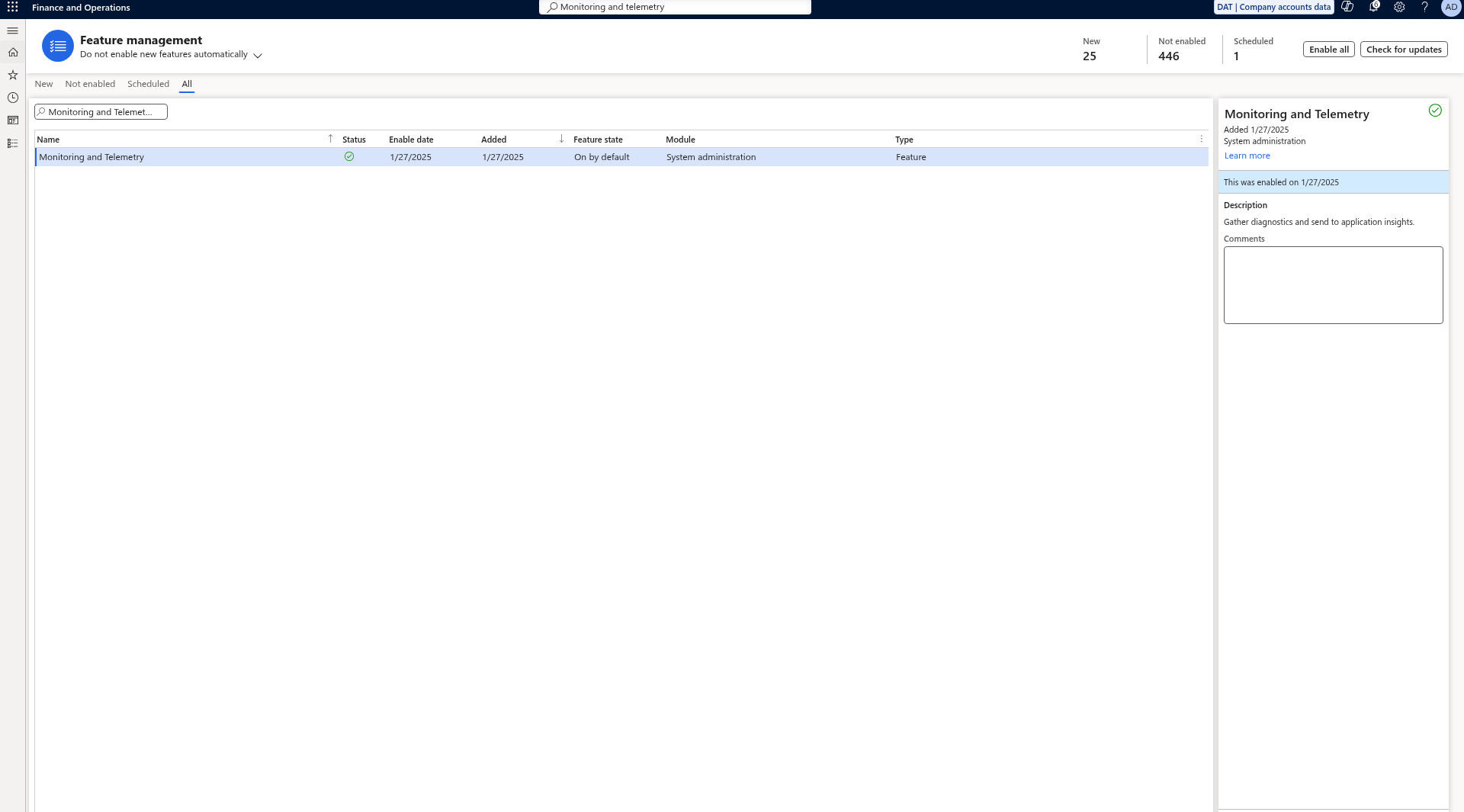
Feature management — Monitoring and Telemetry already on.
2. Monitoring settings
Go to System administration > Setup > Monitoring and telemetry. The page title is Monitoring settings (menu item SysIntParameters, if you're a URL person).
Application Insights Registry tab. Add a row for the environment mode you're using (mine is Development) and paste the full connection string. The docs are explicit: "If a connection string is specified, the instrumentation key is ignored." Use the connection string. Instrumentation-key-only ingestion is on its way out on the Azure side anyway.
Environments tab. Map each environment ID to a mode (Development, Test or Production). If you map all of them up front, the setup survives database refreshes. Environments that aren't mapped fall back to Development.
Configure tab. For this demo I turned on only:
- Batch Job Occurrence Start = Yes
- Batch Job Occurrence Completed = Yes
Everything else stays off. Turn signals on deliberately, one at a time, because each one is ingestion you pay for.
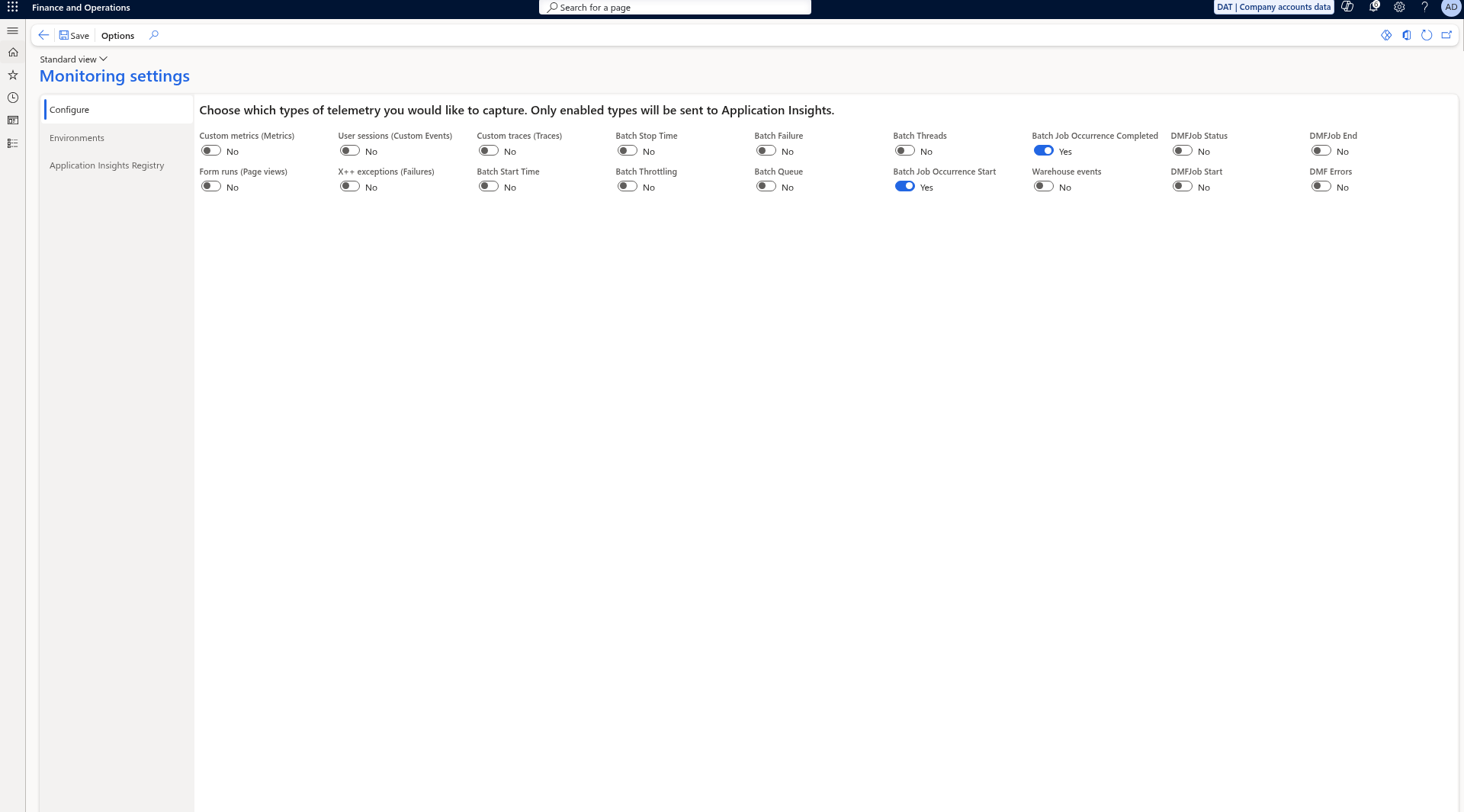
Configure tab — only occurrence start and completed enabled for the demo.
3. Run something
I made a throwaway batch job (System administration > Inquiries > Batch jobs):
- Caption:
Keji telemetry demo - One task: class
SysUserLogCleanup - Job ID:
68720400333
( The Batch job form warns that the class isn't fully designed for the Batch job form. That's fine for a log cleanup demo, but don't copy it into a real schedule. )
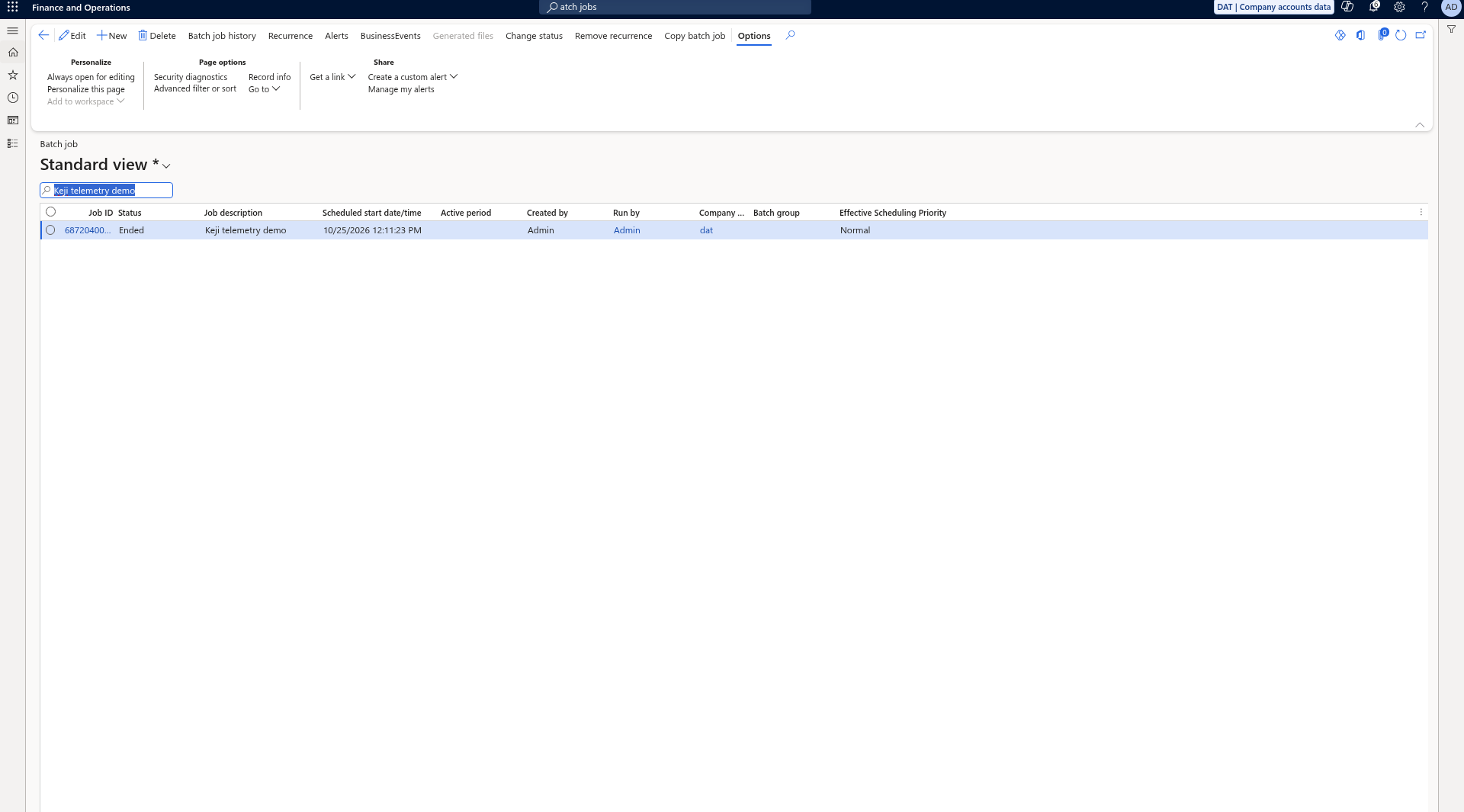
Demo batch job Ended — enough to produce the occurrence events.
It went to Ended in about 11 seconds, with batch job history ID 68723044951.
What lands in Application Insights
Both events show up in customEvents within a few minutes:
| name | eventId | Message |
|---|---|---|
BatchJobStart |
Batch00008 |
Batch job occurrence started |
BatchJobFinished |
Batch00009 |
Batch job occurrence finished |
The useful bits are in customDimensions: BatchJobId, BatchJobCaption, Status, elapsedMilliseconds, BatchJobHistoryId, LegalEntity, plus a CorrelationId that pairs the start and finish events. In my run it was 68720400333_20261025T121426Z, which is the job ID plus the occurrence start timestamp in UTC.
Here's the first query I'd paste. Filter by job ID or caption, whichever you've got:
// Batch job occurrence events for one job (by ID or caption)
let jobId   = "68720400333";
let caption = "Keji telemetry demo";
customEvents
| where timestamp > ago(7d)
| where name in ("BatchJobStart", "BatchJobFinished")
| extend
    BatchJobId        = tostring(customDimensions.BatchJobId),
    BatchJobCaption   = tostring(customDimensions.BatchJobCaption),
    Status            = tostring(customDimensions.Status),
    ElapsedMs         = tolong(customDimensions.elapsedMilliseconds),
    BatchJobHistoryId = tostring(customDimensions.BatchJobHistoryId),
    LegalEntity       = tostring(customDimensions.LegalEntity),
    CorrelationId     = tostring(customDimensions.CorrelationId),
    EventId           = tostring(customDimensions.eventId)
| where BatchJobId == jobId or BatchJobCaption == caption
| project timestamp, name, EventId, BatchJobId, BatchJobCaption, Status,
          ElapsedMs, BatchJobHistoryId, LegalEntity, CorrelationId
| order by timestamp desc
Once a job has a few runs behind it, this one gives you duration trends and a failure count per job:
// Occurrence duration and outcome per job, last 30 days
customEvents
| where timestamp > ago(30d)
| where name == "BatchJobFinished"
| extend
    BatchJobId      = tostring(customDimensions.BatchJobId),
    BatchJobCaption = tostring(customDimensions.BatchJobCaption),
    Status          = tostring(customDimensions.Status),
    ElapsedSec      = todouble(customDimensions.elapsedMilliseconds) / 1000.0
| summarize
    Runs     = count(),
    Failed   = countif(Status != "Finished"),
    AvgSec   = round(avg(ElapsedSec), 1),
    P95Sec   = round(percentile(ElapsedSec, 95), 1),
    MaxSec   = round(max(ElapsedSec), 1),
    LastRun  = max(timestamp)
  by BatchJobId, BatchJobCaption
| order by P95Sec desc
And the one I actually care about for alerting: occurrences that started but never finished.
// Started but no finish event after 2 hours (tune per job)
let window = 2h;
let started = customEvents
    | where timestamp > ago(1d)
    | where name == "BatchJobStart"
    | extend CorrelationId = tostring(customDimensions.CorrelationId),
             BatchJobCaption = tostring(customDimensions.BatchJobCaption)
    | project StartTime = timestamp, CorrelationId, BatchJobCaption;
let finished = customEvents
    | where timestamp > ago(1d)
    | where name == "BatchJobFinished"
    | project CorrelationId = tostring(customDimensions.CorrelationId);
started
| where StartTime < ago(window)
| join kind=leftanti finished on CorrelationId
| order by StartTime asc
Drop that into a log search alert rule on the Application Insights resource and you've got "this job is stuck" without writing a line of X++.
If you query from the Log Analytics workspace rather than Application Insights, the table is AppEvents, and customDimensions becomes Properties. The KQL article has the mapping table.
A side note on batch history logging
Not something I changed for this demo, but it's related. Batch history logging options (flight-enabled, on the Batch jobs page) has a Recommended default, which stores INFO and PARAMETERS in BATCHHISTORY as NULL. Legacy keeps them. If you're on Recommended, you have less historical detail in the database, which is one more reason to have occurrence telemetry flowing out to Application Insights.
Recap
- Occurrence telemetry gives you one start and one finish event per batch job run. That's the grain you want for "did it finish, and how long did it take?" Task-level signals are still there for drilling in.
- Setup takes about five minutes: an Application Insights resource, then the Monitoring settings page (connection string in the registry, environment mapped, two toggles on the Configure tab).
- The events are
BatchJobStart/BatchJobFinishedincustomEvents, keyed byBatchJobIdand paired byCorrelationId. - Start in Application Insights Logs with a capped workspace, and move to ADX when retention or volume justifies it.
That's it from me. If you've built alerts or workbooks on top of these events and want to discuss, or found a dimension I've missed, let me know.


